Display Indicator for Overbooked Inventory on Various Screens
Stay is enhanced to allow users to track the overbooked inventory across various screens. To support this, an oversold indicator will be displayed along with the corresponding oversold count in the following screens:
-
Batch Operations ➜ Check-In ➜ Assign Rooms
-
Dashboard ➜ Tape Chart ➜ Assign Rooms
Users can view details of the inventory sold in the General Availability dashboard.
Display Oversold Indicator
The oversold indicator will be displayed when a specific room type becomes overbooked.
-
The indicator will display the oversold count for the room type.
-
When the reservation includes multiple room types or multiple oversold nights, the system will display the highest oversold count.
For example, consider the following scenario where one night is oversold by 5 rooms and another night is oversold by 10 rooms. In this case, the overbooked indicator will be displayed as follows: Overbooked (10).
The oversold count will be dynamically updated whenever the room type is modified.
Sample Scenario
When reservations booked using the King room type results in an oversold count of 5, and a user changes one reservation from King to Queen room type, the oversold count for the King room type will be automatically updated as 4.
Display Oversold Indicator in Batch Operations Screen
When users select reservations for auto room assignment, the Assign Rooms pop-up screen will be displayed (Front Desk ➜ Batch Operations ➜ Check-In ➜ Assign Rooms). The oversold indicator along with its count will be displayed below the Room Type column in this pop-up screen.
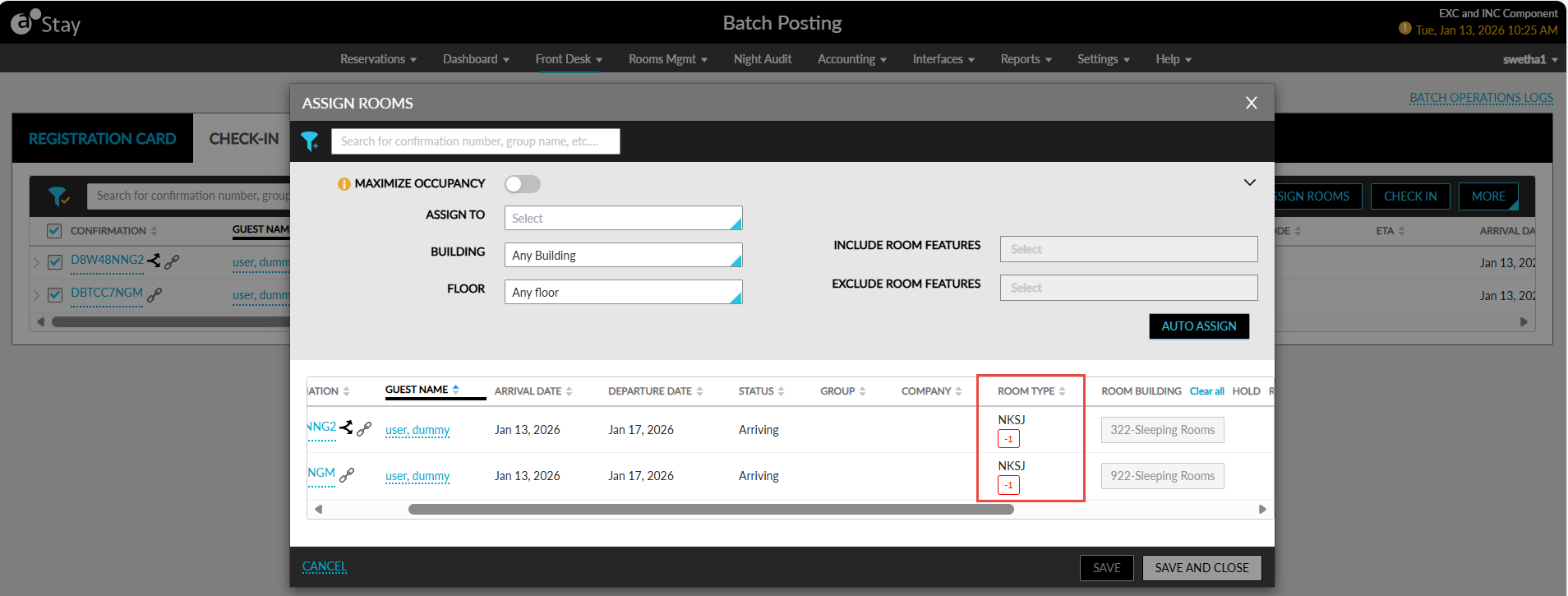
This allows front desk users to immediately identify overbooked room types during batch check-in operations.
Display Oversold Indicator in Tape Chart
When users assign rooms to reservations from the Tape Chart screen using the Assign Rooms option (Dashboard ➜ Tape Chart ➜ Assign Rooms), the Assign Rooms pop-up screen will be displayed.
The oversold indicator and corresponding count will be displayed below the Room Type column in this screen.
General Availability Screen Enhancements
The following enhancements have been made to the General Availability dashboard:
-
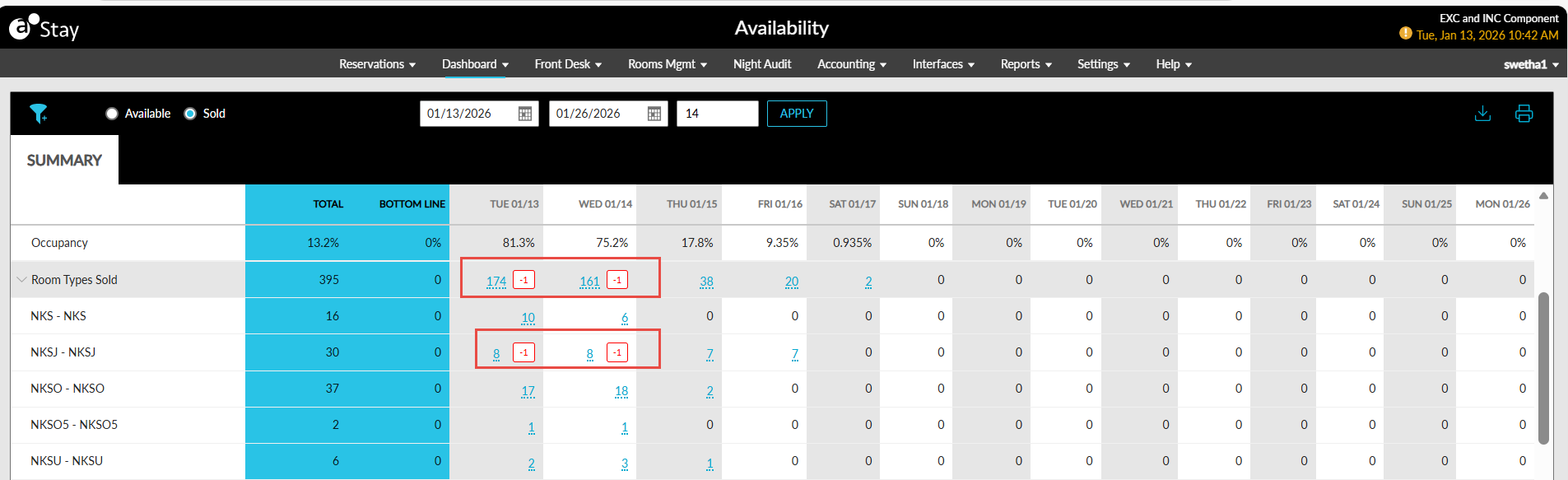
The oversold indicator will be displayed for the following:
-
Total room types
-
Individual room types
-
-
The sold count will be displayed as a hyperlink.
When users click on the hyperlink, a pop-up screen will be displayed that displays the individual reservations and group blocks associated with the room type in two separate tabs.
Summary Section
The Summary section of the General Availability dashboard displays the total rooms sold (both assigned and unassigned) on each date under the Room Type group.
-
The sold count will be displayed both at the individual room type level and all room type levels.
-
When users click on the count displayed as a hyperlink, the list of reservations and group blocks will be displayed.
Total Sold Room Types
When users click on the total count of room types sold displayed as a hyperlink, the All Room Type pop-up screen will be displayed. The list of applicable reservations and groups will be displayed in the Reservations and Groups tabs on this screen.
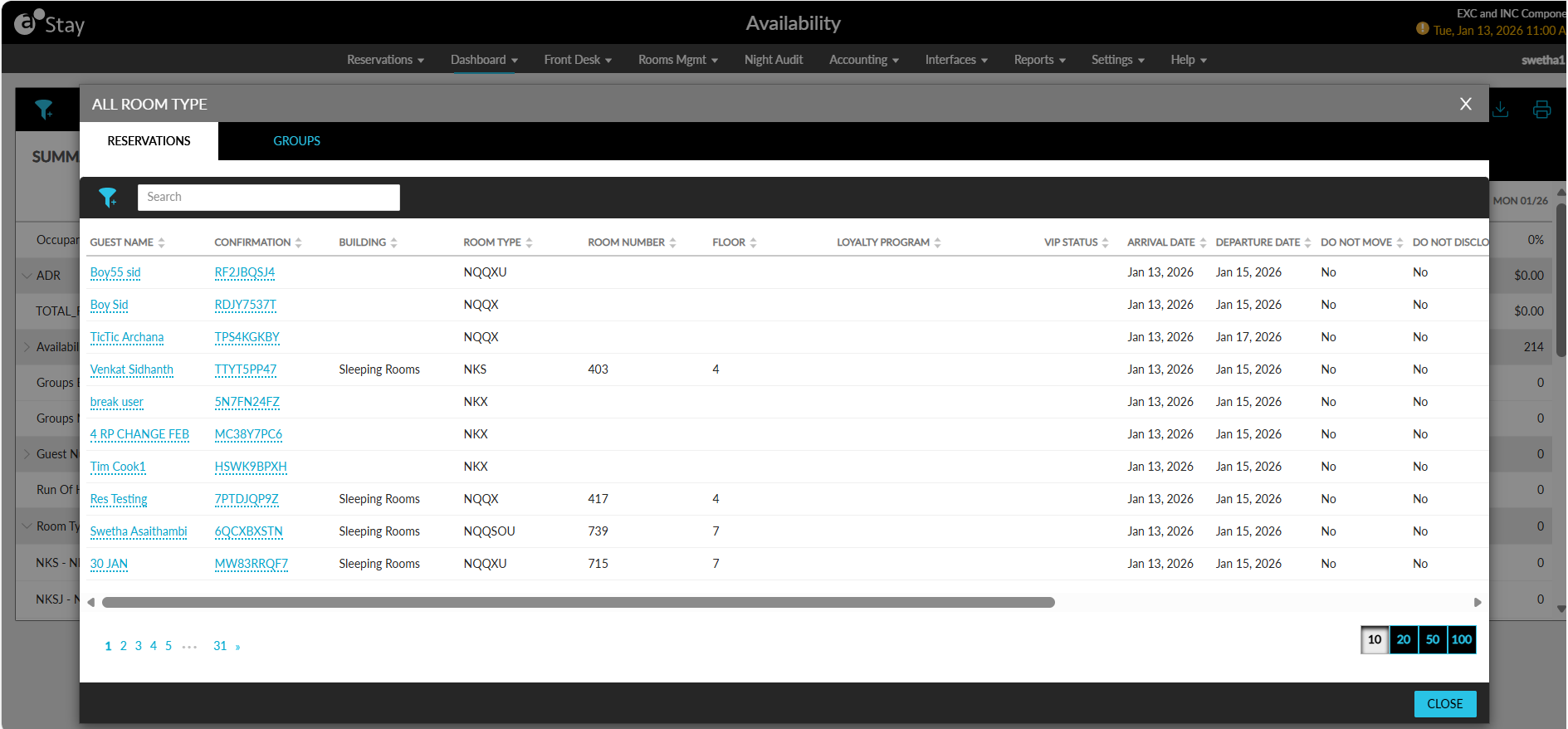
Users can filter the records displayed based on the following options:
-
Buildings: Buildings that have the room types sold for the date will be displayed.
-
Group: The names of the available groups for the day will be displayed.
-
Room Types: Room types that are sold for the day will be displayed.
-
Floors: Floors in which the assigned rooms are available will be displayed.
Individual Room Types
When users click on the sold count for each respective room type displayed as a hyperlink, the Room Type pop-up screen will be displayed along with the details of the individual reservations and group blocks associated with the room type.
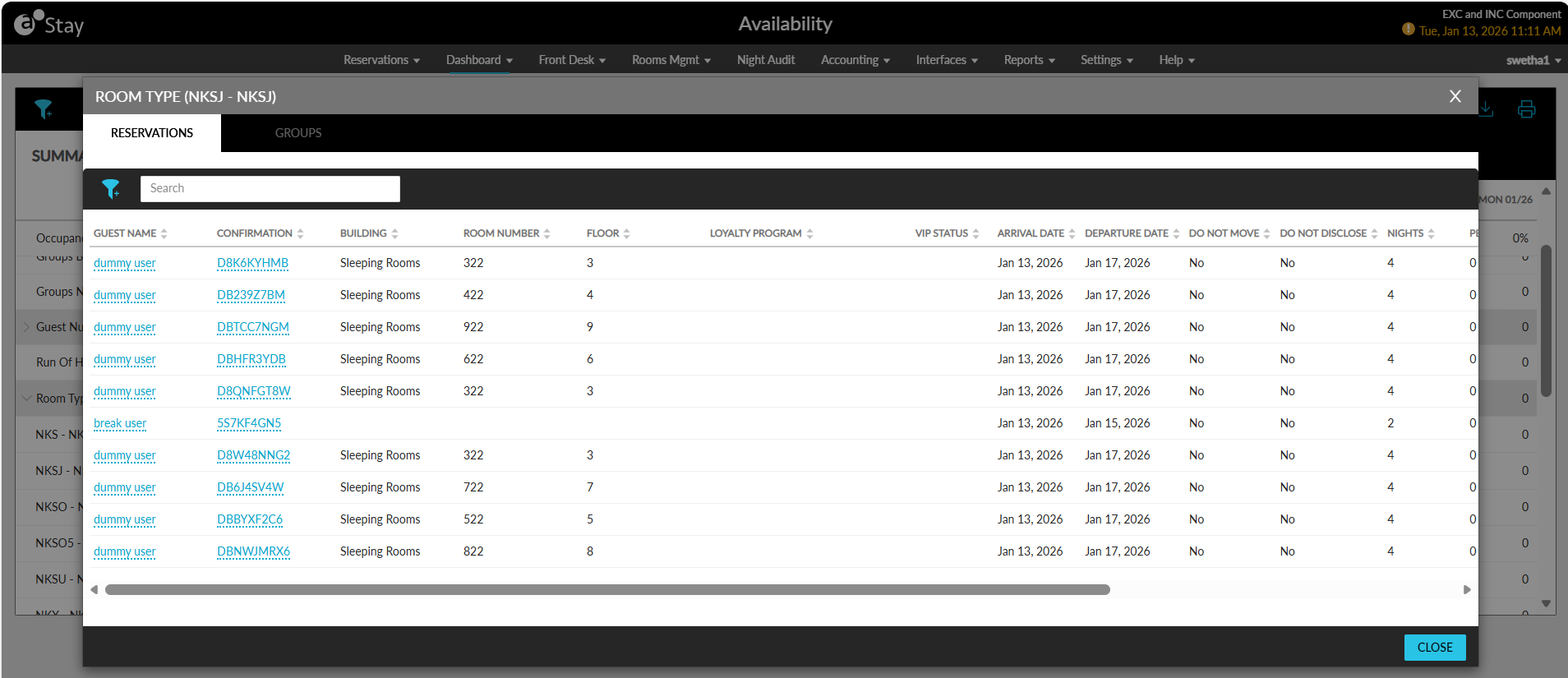
The displayed records can be filtered based on buildings and floors.
Unassigned Section
The Unassigned section displays the unassigned room types along with their sold count.
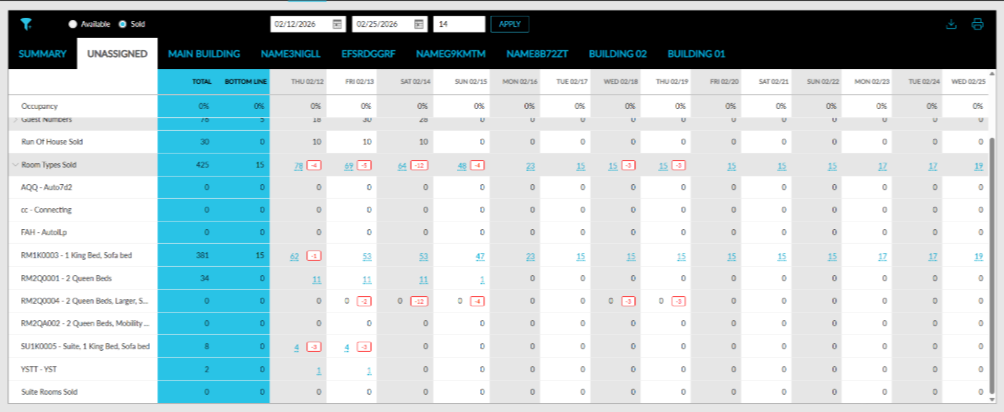
Total Sold Room Types
The total sold count for room types will be displayed as a hyperlink. When the hyperlink is clicked, the Reservation Details pop-up screen appears. In this screen, the guest name and confirmation numbers are displayed as hyperlinks. Selecting either of these hyperlinks will redirect the user to their respective reservations and guest profile details screens.
Users can filter records based on the following options:
-
Groups: The reservation data will be displayed based on the selected group name.
-
Room Types: The reservation data will be retrieved based on the selected room types.
Individual Room Types
The sold count for each respective room type will be displayed as a hyperlink. When clicked, the Reservation Details pop-up screen will be displayed. When a specific room type is selected in the screen, the Room Type column and the filter options except for Groups will not be displayed.
Buildings Section
The room types that are assigned are displayed in this section.
Total Sold Room Types
The total sold count for room types will be displayed as a hyperlink. When clicked, the Reservation Details pop-up screen will be displayed.
In this screen, the guest name and confirmation numbers are displayed as hyperlinks. Selecting either of these hyperlinks will redirect the user to their respective reservations and guest profile details screens.
Users can filter records based on the following options:
-
Group: The reservation data will be displayed based on the selected group name.
-
Room Types: The reservation data will be fetched based on the selected room types.
-
Floors: The reservation data will be fetched based on the selected floor.
Individual Room Types
The sold count for each respective room type will be displayed as a hyperlink. When clicked, the Reservation Details pop-up screen will be displayed. When a specific room type is selected in the screen, the Room Type column and the filter options except for Groups and Floors will not be displayed.
Details of Reservations and Group Blocks
Reservations Tab
The reservation details are displayed in the following columns in the Room Type and All Room Type pop-up screens:
|
Column |
Description |
|---|---|
|
Guest Name |
The name of the guest. |
|
Confirmation |
The reservation confirmation number. |
|
Room Type |
The selected room type. |
|
Room Number |
The assigned room number. |
|
Floor |
The floor where the room is located. |
|
Loyalty |
The guest loyalty program status. |
|
VIP |
The guest VIP status. |
|
Arrival Date |
The check-in date. |
|
Departure Date |
The check-out date. |
|
Do Not Move |
Displays Yes/No. |
|
Do Not Disclose |
Displays Yes/No. |
|
Nights |
The total nights of stay. |
|
Building |
The building name. |
|
Pets |
Indicates pets and count. |
|
Adult |
The number of adults. |
|
Child |
The number of children. |
|
Group |
The group name if applicable. |
|
Rate Code |
The rate plan code associated with the reservation. |
Users can search reservations using the following fields:
-
Guest Name
-
Confirmation Number
-
Room Number
-
Group Name
-
Loyalty Program
-
VIP Status
-
Rate Code
The records can be filtered using the following values:
-
Buildings
-
Floors
-
Room Types
-
Groups
Groups Tab
The following details are displayed in the Groups tab:
|
Column |
Description |
|---|---|
|
Group |
Name of the group. |
|
Group Code |
The group code. |
|
Room Type |
The room types blocked for the group. |
|
Group Room Blocks |
Total number of rooms blocked for the group. |
Users can filter records based on the following options:
-
Group Name
-
Room Types
When a specific room type is selected, Room Type column and the filter option will not be displayed. Users can search for a record using the following values:
-
Group name
-
Group code
When the property does not contain groups or reservations, the respective tab will be greyed out and disabled.
Display of Reservations and Groups Tabs Based on Existing Records
The display of records when the hyperlink for the total number of room blocks is clicked for a room type is determined based on the conditions:
|
Condition |
Display of Tabs |
|---|---|
|
When a property has only groups with room blocks |
The Groups tab is enabled and displayed. |
|
When the property has no groups but only reservations |
The Reservations tab is enabled and displayed. The Groups tab must is greyed out and disabled. |
|
When the property has both reservations and groups with room blocks |
Both the Reservations and Groups tabs are enabled and displayed |